
How to reduce eye strain is an important question for people who spend hours using computers and smartphones. Digital screens are part of everyday life, whether you use them for work, studying, reading, or staying connected with family and friends.
Looking at a screen for long periods can contribute to digital eye strain, sometimes called computer vision syndrome. Common symptoms include tired eyes, headaches, blurred vision, dryness, and difficulty focusing comfortably. These symptoms are often temporary, but they can make everyday tasks more difficult.
The good news is that a few simple changes to your screen habits and workspace may help. To reduce eye strain, start with regular breaks, comfortable screen positioning, better lighting, and a conscious effort to blink normally.
You do not need expensive equipment to begin making improvements. Small, consistent habits can help make computer and smartphone use more comfortable. Here are 10 practical tips you can try at home, at work, or while studying.
Learning how to reduce eye strain can help you develop more comfortable screen habits at home and work.
What Causes Digital Eye Strain?
Digital eye strain can develop when your eyes spend long periods focusing on a nearby screen. Glare, small text, poor lighting, an uncomfortable viewing distance, and uncorrected vision problems may contribute to discomfort.
People also tend to blink less completely when concentrating on a screen. This can allow the surface of the eyes to become dry, leading to irritation or a gritty sensation.
Common symptoms include:
- Tired or aching eyes
- Dryness, burning, or irritation
- Blurred vision
- Headaches
- Watery eyes
- Difficulty focusing after prolonged screen use
- Neck and shoulder discomfort associated with screen posture
Screen use does not automatically mean that your eyes are being permanently damaged. However, persistent symptoms should not be ignored, especially when they interfere with your work or daily activities.
1. Follow the 20-20-20 Rule
One of the simplest ways to give your eyes a break is to follow the 20-20-20 rule. This habit encourages you to look away from your screen regularly instead of focusing on the same nearby object for hours.
The rule is easy to remember:
- Every 20 minutes, take a short break from looking at your screen.
- Look at something approximately 20 feet away.
- Keep looking at the distant object for at least 20 seconds.
For example, if you are working on a laptop, look out of a window at a distant tree or building. If you are using your phone, put it down briefly and look across the room or outside.
You can set a reminder on your phone or computer to help establish this habit. Over time, taking these short breaks may become part of your normal routine.
One simple way to understand how to reduce eye strain is to take regular breaks from close-up screen viewing.
The 20-20-20 rule is not a treatment for every eye problem, but it is a practical strategy for managing discomfort associated with prolonged near work.
2. Keep Your Screen at a Comfortable Distance
Holding a phone too close to your face or sitting very near a computer monitor can make prolonged screen viewing less comfortable.
If you want to know how to reduce eye strain, make sure your monitor is positioned at a comfortable distance.
For a desktop computer, a distance of around an arm’s length—often approximately 20 to 26 inches—can be a useful starting point. Adjust the distance according to your screen size, text readability, and comfort.
For smartphones and tablets, hold the device at a comfortable distance that allows you to read without squinting or leaning forward excessively.
Try these simple adjustments:
- Move your monitor farther away if it feels too close.
- Increase the text size rather than moving your face toward the screen.
- Avoid holding your phone extremely close to your eyes.
- Position your screen so you can read comfortably without leaning forward.
If you constantly squint, experience headaches, or struggle to read text even after adjusting the distance, an eye examination may help identify an underlying vision problem.
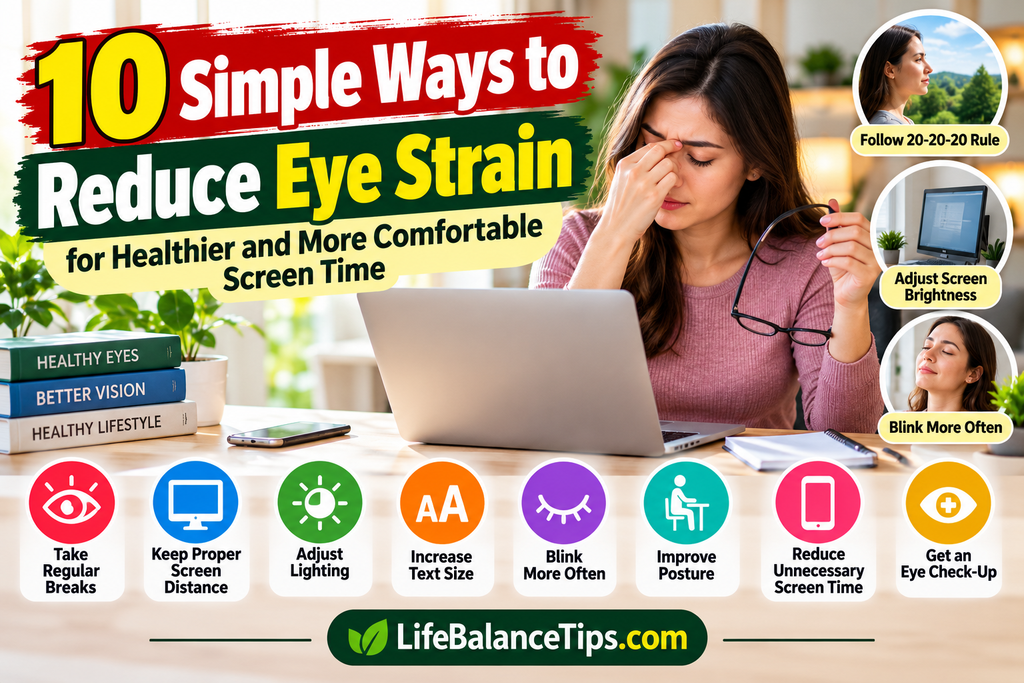
3. Adjust Your Screen Brightness and Text Size
A screen that looks much brighter or darker than its surroundings may be uncomfortable to view. Tiny text can also encourage squinting and leaning forward.
Adjust your screen brightness to suit the lighting in your room. The screen should be clear and easy to read without appearing glaringly bright.
Increasing the text size can make a noticeable difference, especially on smaller devices. You can also adjust contrast and use display settings that make text easier to distinguish from its background.
Adjusting your screen brightness and text size may help if you are exploring how to reduce eye strain during long work sessions.
Consider these steps:
- Increase font size if you regularly squint.
- Adjust brightness to match the surrounding light.
- Use comfortable contrast between text and background.
- Clean your screen to remove fingerprints and smudges.
- Avoid using a very bright screen in a dark room for long periods.
You do not need to use the same settings in every environment. A screen that feels comfortable in a bright office may need different adjustments in a dim room.
4. Blink More Consciously
Blinking spreads tears across the surface of your eyes and helps keep them moist. When you concentrate on a screen, your blinking pattern may change, and you may blink less completely.
This can contribute to dryness, irritation, and a gritty feeling.
Try to make complete, natural blinks part of your screen routine. Every so often, briefly look away from the screen and gently close and open your eyes normally. Avoid squeezing your eyelids tightly or repeatedly rubbing your eyes.
If your eyes often feel dry, other factors may also be involved, including contact lens use, dry indoor air, certain medications, or an underlying dry-eye condition.
Lubricating eye drops, sometimes called artificial tears, may help some people with dryness. Ask a pharmacist or eye-care professional which product is appropriate for you, especially if you need drops frequently or wear contact lenses.
Frequent dryness deserves attention rather than being blamed on screen time alone.
5. Improve the Lighting in Your Workspace
Poor lighting can make reading from a screen more difficult. Reflections from windows, overhead lights, or lamps may also create glare that interferes with comfortable viewing.
You can improve your workspace without making expensive changes.
First, position your monitor so bright windows or lights do not reflect directly off the screen. If sunlight creates glare, adjust the blinds or move your desk when possible.
Second, make sure the room is sufficiently lit for your activities. Avoid relying on a bright screen as the only light source in a completely dark room if that feels uncomfortable.
Other helpful adjustments include:
- Use a desk lamp that illuminates paperwork without shining into your eyes.
- Reduce reflections from glossy surfaces.
- Clean your monitor regularly.
- Adjust your seating position to avoid direct glare.
- Choose lighting that lets you read comfortably without squinting.
The best setup is one that allows you to see clearly without constantly changing your posture or struggling with reflections.
6. Position Your Screen Slightly Below Eye Level
Your screen position can affect both visual comfort and posture. A monitor that is too high or too low may encourage you to tilt your head or lean forward.
For many desktop users, placing the monitor so the center of the screen is slightly below eye level is a comfortable starting point. The screen should also be far enough away to allow relaxed reading.
If you use a laptop, you may need to adjust the screen angle and the position of your chair. When possible, a separate keyboard and mouse can help you keep a more comfortable posture if the laptop is raised.
For smartphone use, try to avoid bending your neck forward for extended periods. Raise the device when practical, relax your shoulders, and change positions regularly.
Good screen positioning may help reduce visual discomfort as well as neck and shoulder strain.
7. Take Longer Breaks During Extended Screen Use
Short distance-viewing breaks are useful, but they are not the only breaks worth taking. If you spend several hours working at a computer, consider stepping away from your desk periodically.
During a longer break, you might stand up, walk around, stretch gently, get some water, or complete a task that does not require looking at a screen.
For example, after a long period of computer work, you could take a short walk around your home or office before returning to your task.
Try to build breaks into your schedule rather than waiting until your eyes feel exhausted. You may find it easier to remember if you link a break to a natural stopping point, such as finishing a document or completing a meeting.
If your job requires continuous screen use, even brief breaks from close-up viewing can be a useful habit. Follow workplace requirements and take longer breaks whenever practical.
8. Reduce Unnecessary Screen Time
Not all screen use can be avoided. Computers may be essential for work, education, communication, and everyday tasks. However, you may be able to reduce some optional screen time.
For example, you could listen to an audio version of content instead of reading from a screen, take phone calls without looking at the display, or choose a paper book for some reading activities.
Other ideas include:
- Avoid scrolling on your phone when you do not have a specific reason.
- Take screen-free breaks during meals.
- Use audio for suitable tasks.
- Put your phone away during short walks.
- Set aside time for hobbies that do not involve screens.
You do not have to eliminate technology from your life. The aim is to balance necessary screen use with activities that allow your eyes to focus at different distances.
If you experience discomfort despite reducing unnecessary screen use, review your workspace and consider getting your eyes checked.
9. Be Careful With Blue-Light Glasses and Night Settings
Blue-light-blocking glasses are often marketed as a solution for tired eyes. However, evidence does not establish that blue light from ordinary digital screens is the main cause of digital eye strain, and special blue-light glasses have not been shown to be necessary for most people using computers.
Eye discomfort is more commonly associated with factors such as prolonged near work, glare, altered blinking, poor screen positioning, and uncorrected vision problems.
Night mode or warmer display settings may feel more comfortable for some users, particularly in the evening. Reducing bright screen use before bedtime may also be helpful for sleep routines.
However, night mode should not be treated as a replacement for regular breaks, comfortable viewing distance, or appropriate eye care.
If you are considering special computer glasses because you struggle to focus on your screen, ask an eye-care professional whether a prescription or other adjustment would be useful.
10. Get Your Eyes Checked When Symptoms Continue
Simple screen habits may help reduce temporary discomfort, but they cannot correct every cause of eye strain.
Knowing how to reduce eye strain also means recognizing when persistent symptoms need professional attention.
An uncorrected prescription, dry-eye condition, difficulty focusing, or a problem with how your eyes work together may contribute to ongoing symptoms. An eye-care professional can assess these possibilities and recommend appropriate treatment.
Consider arranging an eye examination if you frequently experience:
- Blurred vision after screen use
- Repeated headaches while reading
- Persistent dry or irritated eyes
- Difficulty focusing at your normal viewing distance
- Symptoms that continue even after taking breaks and adjusting your setup
Seek urgent medical attention for sudden vision loss, severe eye pain, or sudden vision changes. Do not assume these symptoms are simply caused by screen time.
If you are unsure how to reduce eye strain despite making routine changes, professional advice is the safest next step.
Quick Daily Checklist for Comfortable Screen Use
Use this table as a simple reminder while working, studying, or browsing on your phone.
| Habit | What to do |
| Eye breaks | Follow the 20-20-20 rule |
| Viewing distance | Keep your screen at a comfortable distance |
| Text size | Increase it if you need to squint |
| Blinking | Blink naturally and completely |
| Lighting | Reduce glare and harsh reflections |
| Screen position | Keep your monitor slightly below eye level |
| Longer breaks | Step away from your screen periodically |
| Optional screen use | Balance it with screen-free activities |
| Display settings | Adjust brightness and contrast for comfort |
| Eye care | Seek an eye examination for persistent symptoms |
You do not have to change everything at once. Start with one or two habits, such as taking regular breaks and adjusting your screen distance, and build from there.
Frequently Asked Questions
1. What is the fastest way to relieve digital eye strain?
If your eyes feel tired after prolonged screen use, stop looking at the screen for a while and focus on a distant object. Blink normally and rest in a comfortable environment. If symptoms persist or recur frequently, arrange an eye examination.
2. Does the 20-20-20 rule really help?
The 20-20-20 rule is a commonly recommended habit for giving your eyes regular breaks from close-up screen viewing. It may help manage discomfort, although it does not guarantee that symptoms will disappear or treat an underlying eye condition.
3. Can looking at a phone in the dark cause eye strain?
Using a bright screen in a dark environment may feel uncomfortable for some people. Adjust brightness to suit the room, use comfortable text settings, and take regular breaks. Screen discomfort does not automatically mean permanent eye damage.
4. Are blue-light glasses necessary for computer use?
Most people do not need special blue-light-blocking glasses simply because they use a computer. Evidence has not established blue light from ordinary screens as the main cause of digital eye strain. Comfortable screen habits and an appropriate vision prescription are more important considerations.
5. Can dry eyes be caused by screen use?
Prolonged screen use can contribute to dry-eye symptoms because blinking patterns may change during close-up tasks. However, dryness can have other causes too. Persistent symptoms should be discussed with an eye-care professional.
6. How far away should a computer screen be?
A distance of approximately an arm’s length is a useful starting point for many desktop monitors. Adjust the distance to your screen size and comfort, and increase text size if needed rather than leaning closer.
7. When should I see an eye doctor for eye strain?
Arrange an eye examination if symptoms continue despite taking breaks and adjusting your workspace, or if you regularly experience headaches, blurred vision, or persistent irritation. Sudden vision changes or severe eye pain require urgent medical assessment
You can link to your existing article “Daily Health Tips for a Better Lifestyle: 10 Simple Habits” using this sentence:
Explore more everyday habits in our guide to simple health tips for building a healthier lifestyle.”
Insert the exact URL of that article before publishing.
Conclusion
Digital screens are a normal part of modern life, but long periods of close-up viewing can leave your eyes feeling tired or uncomfortable. The good news is that small changes to your daily routine may make screen use easier.
If you want to learn how to reduce eye strain, start by following the 20-20-20 rule, adjusting your screen distance, improving lighting, blinking naturally, and taking regular breaks. Make sure your screen settings and workspace suit your needs, and do not ignore symptoms that keep returning.
Remember that eye discomfort is not always caused by screens alone. If your symptoms continue or affect your vision, seek advice from an eye-care professional.
A few practical habits, combined with appropriate eye care, can help you work and study more comfortably while making technology a more manageable part of your daily life.
Health Disclaimer
This article is for general educational purposes only and is not a substitute for professional medical advice, diagnosis, or treatment. Eye symptoms can have different causes. Consult a qualified eye-care professional for persistent discomfort, blurred vision, or other concerns. Seek urgent medical care for sudden vision loss or severe eye pain.
Trusted References
- American Academy of Ophthalmology (AAO): Computers, Digital Devices, and Eye Strain
- American Academy of Ophthalmology (AAO): Digital Devices and Your Eyes
- American Optometric Association (AOA): Computer Vision Syndrome
- National Eye Institute (NEI): Keep Your Eyes Healthy